Video transcription for captions, notes, and faster editing
If your video has clear talking, video transcription can save hours. This guide shows a clean video to text converter workflow you can repeat every week for captions, notes, and drafts.
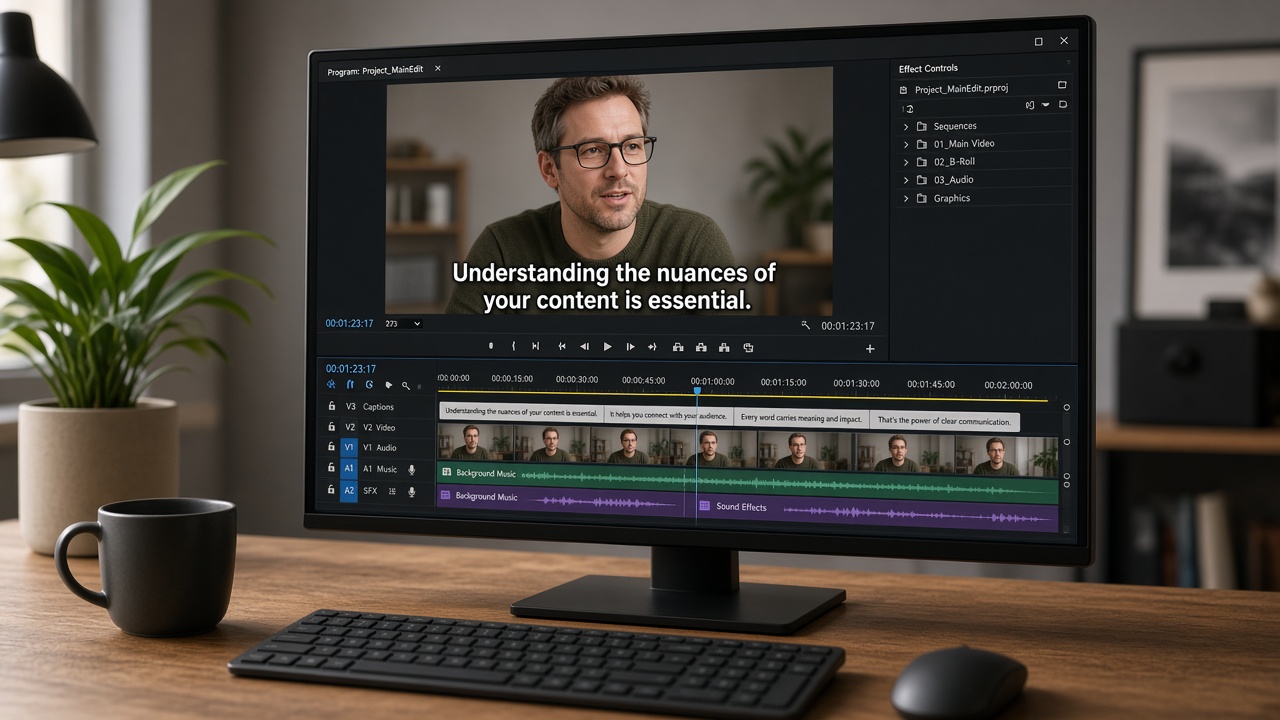
Why video transcription is useful
Video transcription turns spoken words from a video into text. Creators use it for captions, show notes, blog drafts, lesson summaries, and search-friendly page content.
A video to text converter is most helpful when the speaker is clear and the message matters more than the background sound.
Step-by-step video to text workflow
- Pick a video with the clearest speech track.
- If the audio is messy, clean it with an AI audio cleaner.
- Run speech to text on the file.
- Review names, product words, and short gaps.
- Break the text into captions or reuse it in a post.
This process works for Reels, YouTube explainers, webinars, tutorials, and customer testimonials.
Make captions that are easy to read
- Keep lines short.
- Do not cover important faces or product details.
- Use natural pauses for line breaks.
- Check the first five seconds carefully. That is where viewers decide to stay.
Repurpose the transcript
Once you have video transcription, you can turn one video into several assets: a caption file, a LinkedIn post, a FAQ draft, or a short email summary. That is one of the biggest time savers in content work.
Tip: Save a clean master transcript. Future edits become much faster when you are not starting from zero.
When results are weak
If the transcript looks messy, the issue is often the source audio. Loud music, echo, or overlapping speakers make speech to text harder. Clean the file, use a clearer clip, or transcribe a shorter section first.
Also check whether the camera mic was too far away. A close, clear voice almost always gives better video transcription than a distant room recording with clever editing afterward.
Choose the right clip for a video to text converter
Start with the section that carries the message. Intros, demos, and customer answers often matter more than long filler. A focused clip keeps review time short and makes captions easier to place.
If the full video is long, split it into chapters and run video transcription on each part. That is easier to check than one giant transcript with no structure.
When music beds are loud, export a speech-only track if your editor allows it. Cleaner input helps every AI audio cleaner and speech to text step that follows.
A repeatable editing checklist
- Confirm the first spoken line is correct
- Fix brand names and product spellings
- Mark pauses that should become caption breaks
- Remove filler words only when they hurt reading
- Save a clean master before heavy rewriting
This checklist keeps video transcription useful beyond one publish date. Next week, you can reuse the same text for a short post or email without starting over.
Frequently asked questions
What is a video to text converter?
It is a tool that turns the spoken words in a video into editable text. That text can become captions, notes, or new written content.
Should I clean video audio before transcription?
Yes, when background noise is strong. An AI audio cleaner can improve speech clarity and help video transcription quality.
Can I use one transcript for captions and a blog post?
Yes. Edit once, then adapt the same text for captions, social posts, or a longer article.
Does video transcription work for short social clips?
Yes. Short talking clips are often the easiest files to convert, and they make captions faster to finish.
More guides: Speech to text guideNoise remover guideAI video tools