How to remove background noise without ruining the voice
A good background noise remover should make speech easier to hear, not fake or hollow. This guide shows a careful way to use an AI audio cleaner, know when to stop, and when an online voice enhancer helps.
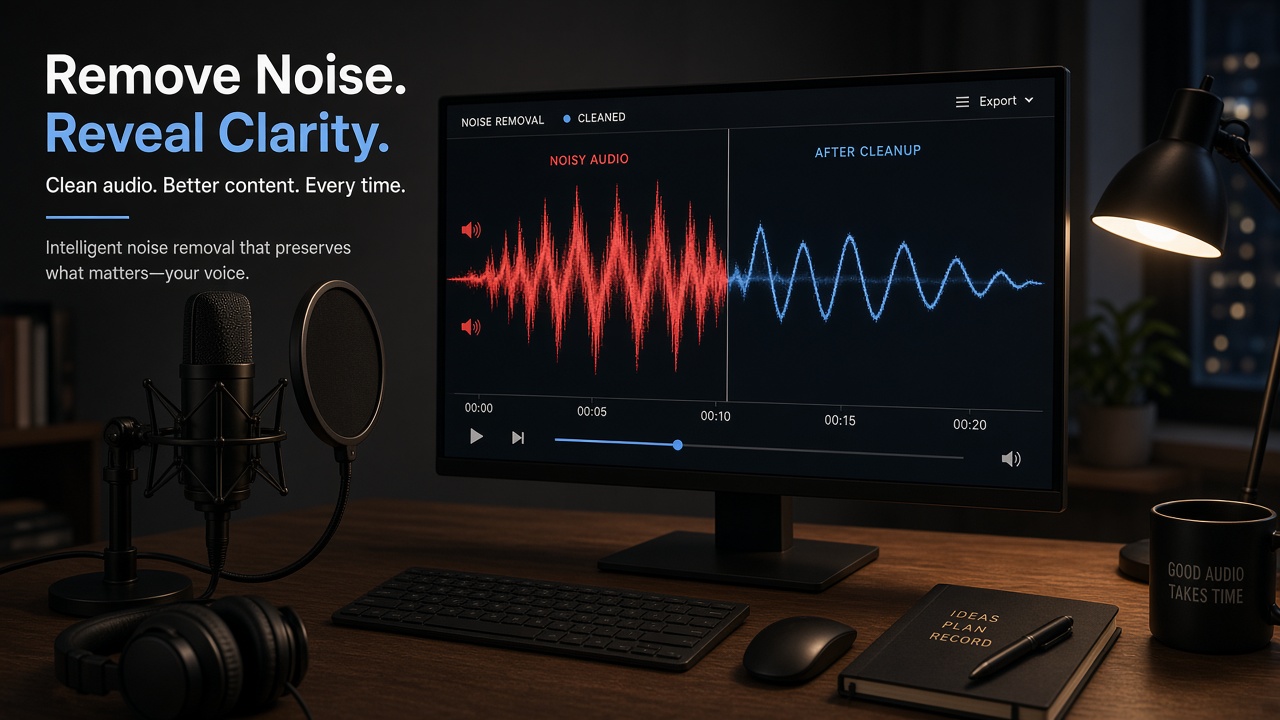
What a background noise remover can fix
An AI audio cleaner can reduce steady noise like fans, AC hum, street rumble, keyboard clicks, and light room hiss. It works best when the voice is still clearly present under the noise.
It will not fully repair clipped audio, heavy echo, or a recording where the speaker is too far from the mic. In those cases, improve the next recording setup too.
A careful cleaning process
- Upload the original file, not a heavily compressed copy.
- Run the background noise remover once.
- Preview speech, not just silence.
- If noise remains, try a second lighter pass instead of one extreme pass.
- If the voice still feels weak, use an online voice enhancer after cleaning.
Tip: Always compare the cleaned file with the original. If the voice lost warmth or detail, pull back.
Signs you cleaned too hard
- The voice sounds watery or metallic
- S sounds become harsh
- Quiet words disappear
- The recording feels thin and empty
When that happens, go back to a milder result. Clear speech matters more than perfect silence.
Best files to clean first
Start with voice notes, interview clips, course recordings, and phone videos with talking. These usually improve quickly and help you learn how far cleaning should go.
After cleaning, you can send the file to speech to text for notes or captions with better accuracy.
Simple recording habits that help later
Hold the phone closer, face away from loud streets, and pause for a second before speaking. Small recording habits make every AI audio cleaner more effective.
If you record indoors, turn off unused fans when you can and avoid placing the mic next to a laptop vent. Less noise in the room means the background noise remover has less work to do.
When a background noise remover is the right tool
Use it for interviews in cafes, phone videos with street sound, lecture recordings with AC hum, and voice notes with light hiss. In those cases, an AI audio cleaner often makes the speech usable in minutes.
Skip aggressive cleaning when the noise is part of the story, such as a live event ambience you want to keep. Also be careful with music tracks. A background noise remover is built for speech first, not for preserving complex music detail.
After cleaning, listen for words that got softer. If important syllables disappeared, keep a milder version. Clear meaning beats perfect silence every time.
Clean first, then enhance, then transcribe
- Run the background noise remover.
- Check the voice on earbuds and phone speakers.
- Use an online voice enhancer only if the speech still feels dull.
- Send the cleaned file to speech to text if you need notes or captions.
This order keeps AI audio tools from fighting each other. Cleaning first usually gives both enhancement and transcription a better starting point.
Frequently asked questions
What does an AI audio cleaner do?
It reduces unwanted background sound so the voice is easier to hear. It is useful for phone recordings, interviews, and noisy rooms.
When should I use an online voice enhancer?
Use it after noise removal if the voice still feels weak or dull. Enhancing first can also boost the noise, so clean first when possible.
Can I clean audio before speech to text?
Yes. Cleaner speech often improves transcription quality, especially on noisy phone recordings.
Will a background noise remover fix echo?
It can reduce some room sound, but strong echo is harder. Move closer to the mic next time and choose a quieter space when you can.
More guides: Audio cleaner pageAI audio toolsSpeech to text guide