How to turn a meeting recording into notes people will actually use
Most teams save the Zoom file and never open it again. This guide walks through a plain workflow: keep the original, clean only what you need, transcribe the speech, then pull out decisions and action items before the day ends.
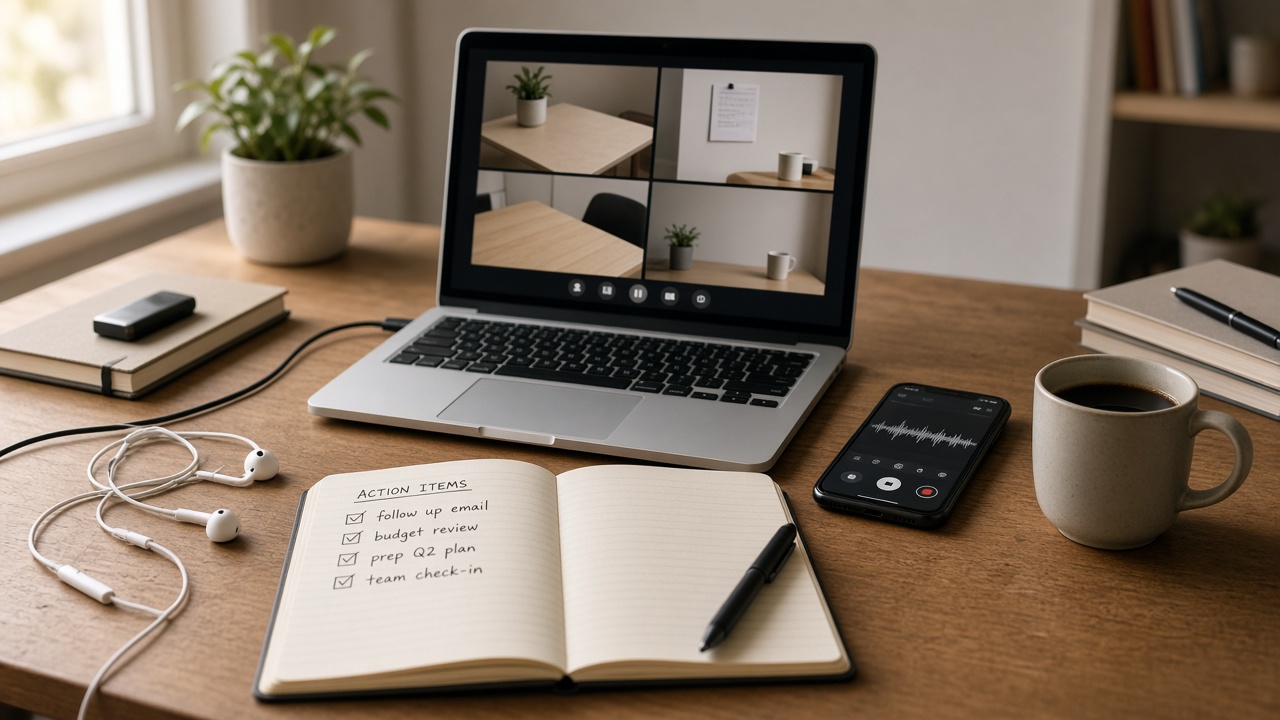
Why meeting files pile up unused
A one-hour call can create a heavy video or audio file. Playing it back later feels like homework. People promise to “revisit the recording,” then the next meeting arrives and the old file sits in Downloads forever.
Notes fail for a simpler reason too: people try to type while talking. They miss names, dates, and the exact wording of a decision. The recording has those details. The trick is getting them out without replaying the whole call.
You do not need a fancy system. You need a short path from file to usable text, then a second pass that turns that text into a list someone can act on.
What you need before you start
Start with the original export from Zoom, Google Meet, Teams, or a phone voice memo. Avoid a copy that was already compressed twice or converted through three apps. Every extra conversion can blur consonants and make names harder to catch.
If the meeting was long, you can still process the full file. Just know that the review step will take longer. For first practice, pick a 15 to 25 minute call with a clear purpose: a weekly sync, a client update, or a project check-in.
Tip: Save the original in a folder named by date and topic, like 2026-11-06-client-kickoff. Put the cleaned audio, transcript, and final notes in the same folder so nothing gets lost.
Step 1: Listen for 30 seconds, not the whole call
Open the file and sample three spots: the start, somewhere in the middle, and a busy stretch near the end. Ask one question only: can you follow the words without straining?
If yes, skip cleaning and go to speech to text. If you hear a constant fan, AC hum, keyboard clatter, or street noise under the voices, a light pass through an AI audio cleaner helps before transcription.
Do not chase silence. Meeting rooms are never empty. You want speech that is easier to follow, not a sterile track that thins out quieter speakers.
Step 2: Clean only when the noise is getting in the way
Upload the original and run one careful clean. Preview a sentence from each speaker if you can. Check that soft voices did not disappear and that “s” sounds did not turn harsh.
Common meeting noise that cleaning handles well:
- Laptop fans and AC hum
- Light room hiss on phone mics
- Distant street rumble through an open window
- Keyboard noise during note-taking
Cleaning struggles more with heavy echo, people talking over each other, and a mic sitting far across a table. In those cases, still try transcription, but expect more manual fixes on names and short words.
If you want a deeper look at cleaning habits, see the background noise remover guide. For meeting notes, keep it lighter: one pass, compare with the original, keep the better file.
Step 3: Run speech to text on the clearer file
Send the cleaned file (or the original, if it was already clear) to speech to text. Export a plain text transcript first. Subtitles can wait. For notes, readable paragraphs matter more than SRT timing.
Expect imperfect spelling on product names, surnames, and acronyms. That is normal. Your job in the next step is not to rewrite every line. Your job is to catch the decisions and the work that follows.
If the transcript looks messy because two people spoke at once, mark that section and move on. You can replay just that minute later instead of cleaning the whole document.
Step 4: Pull decisions and action items, ignore the rest
Open the transcript and skim with a highlighter mindset. You are hunting for four things:
- Decisions that changed the plan
- Owners (who will do the work)
- Deadlines or time ranges
- Open questions that still need an answer
Write those into a short note page. A useful shape looks like this:
- Summary: one or two sentences on what the meeting was for
- Decisions: bullets with the final call
- Action items: owner, task, due date
- Follow-ups: questions left hanging
Leave out greetings, repeated explanations, and side stories. If someone needs the full talk, they still have the recording. The notes should fit on one screen.
Example: “Aisha will send the revised quote by Thursday. We keep the May launch date. Parking page copy stays draft until legal replies.” That is enough. You do not need the ten minutes of discussion that led there.
A realistic 20-minute routine after the call
Right after the meeting, while the context is fresh, block twenty minutes:
- Save the original file into the dated folder (2 minutes)
- Sample the audio and clean only if needed (5 minutes)
- Run speech to text (start it, then stretch while it works)
- Skim the transcript for decisions and owners (8 minutes)
- Paste the short note into Slack, email, or your project tool (5 minutes)
Doing this the same day beats doing a “perfect” rewrite next week. Next week you will not remember who agreed to what.
Phone memos, hybrid rooms, and client calls
Not every meeting lives in Zoom. Some are hallway chats or client calls recorded on a phone. Put the phone on the table between speakers, screen down, and leave a little space so clothing and papers do not rub the mic.
Hybrid rooms are harder: one person on laptop speakers, three people in a conference room. Sit the laptop closer to the room mic path if you can, or record a second local voice memo as backup. Later, pick the clearer file before you transcribe.
For client calls, tell people you are recording when required, and keep files private. Process what you need, then delete exports you no longer need from shared drives.
Common mistakes that waste an afternoon
- Transcribing a noisy file, then cleaning afterward and running speech to text again
- Trying to edit the entire transcript into polished prose
- Skipping owners and dates, so the note reads like a diary instead of a task list
- Waiting two days, then guessing who promised which deliverable
- Saving five versions of the same file with names like
final2-real.mp3
Keep one original, one working audio file, one transcript, one note. That is plenty.
When this workflow is the wrong fit
Skip heavy cleanup and detailed notes for pure brainstorms where the point was energy, not decisions. A short personal reminder may be enough.
Also be careful with sensitive HR or legal conversations. Follow your company rules on recording and storage. Tools help with clarity. They do not replace consent or policy.
If the recording is mostly music, overlapping chatter, or a live event with a crowd, expect weak transcripts. Speech to text is built for spoken conversation, not every sound in a room.
How this fits with the rest of your audio tools
Meeting notes sit in a simple chain: record, clean if needed, transcribe, extract tasks. That is different from making a voiceover from a script, and different from captioning a YouTube video start to finish.
If you later need captions for a published clip of the same call, you can reuse the cleaner audio and export subtitle formats from speech to text. If you need a narrated summary for stakeholders who will not read notes, write a short script from your action list and generate speech with AI text to speech.
Use one tool at a time. Finish notes first. Extra formats can wait until someone asks for them.
Frequently asked questions
Do I need a perfect recording to get useful meeting notes?
No. You need speech that is mostly understandable. Light cleanup helps when fans, keyboard noise, or room hum get in the way, but a clean room and people speaking one at a time still matter most.
Should I clean the audio before speech to text?
If the recording is noisy, yes. Clean first, then transcribe. If the file is already clear, skip cleaning and go straight to speech to text.
How do I turn a long transcript into action items?
Skim for decisions, owners, and dates. Copy those lines into a short list. Ignore small talk and repeated points. A good note page is short enough that someone can scan it in under a minute.
Can I use a phone recording instead of a Zoom file?
Yes. Phone voice memos work if the phone sat close to the speakers. Keep the original file, clean only if needed, then run speech to text.
More guides: Speech to text guideBackground noise removerAI audio cleaner