How to create professional AI voiceovers without recording equipment
You do not need a USB mic, a quiet booth, or a voice actor booking to ship clear narration. Modern AI voiceovers turn a written script into speech you can drop under YouTube videos, courses, and ads. This guide shows a practical no-equipment workflow: write for the ear, generate with AI text to speech, check the take like a creator, then publish.
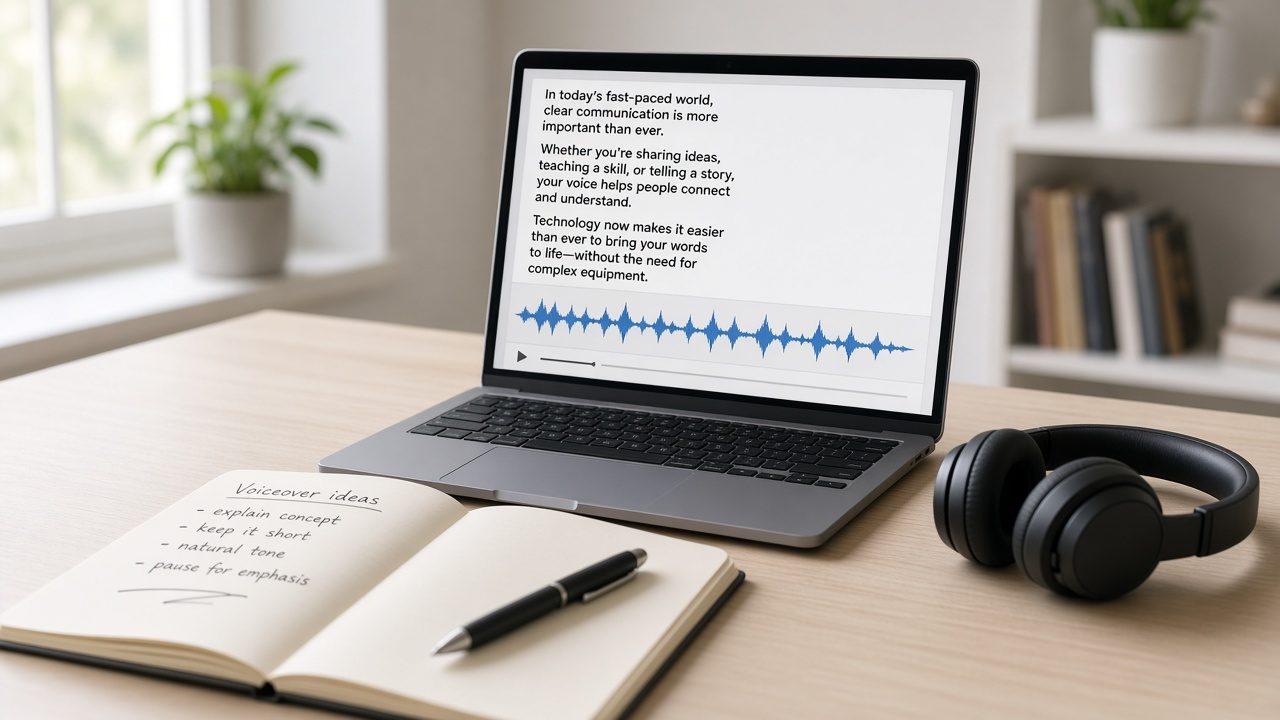
Why AI voiceovers are now good enough
Older text-to-speech sounded flat and clipped. Newer neural voices handle pacing, questions, and soft emphasis well enough that many viewers never ask how the audio was made. For faceless explainers, product demos, lesson modules, and ad drafts, that is the bar that matters.
AI voiceovers win when you need:
- Consistent tone across a whole series
- Fast revisions without a re-record session
- Clean speech from a noisy apartment or shared office
- A free AI voiceover draft before you spend on a human read
They are weaker when the story depends on your personal identity, emotional improvisation, or a live interview. Use AI when clarity and speed matter more than hearing your exact voice.
What you need to start (only script + tool)
Skip the gear checklist. For a usable first version you need two things:
- A script written the way people talk
- A voice generator online or AI text to speech workspace
That is it. No interface, no foam panels, no quiet-room hunt. You can do this easily with tools like VoiceStockAI - just paste your script and download the voiceover.
If you already know the general AI text to speech flow, this article focuses on the no-mic decisions that make AI voiceovers sound publishable. For a shorter companion walkthrough, see how to create an AI voiceover.
Step-by-step: how to create an AI voiceover
1. Write a spoken script, not an essay
Read every line out loud once. If you stumble, rewrite. Prefer short sentences, contractions, and plain words. Punctuation is stage direction: commas for small pauses, periods for real breath.
Spell hard items the way you want them heard. Write “ten thousand” instead of “10,000” when the tool misreads numbers. Expand awkward abbreviations unless the voice already handles them well.
2. Test one hard passage first
Do not generate the whole video yet. Paste a short sample that includes a normal sentence, a product name, a price, and one question. Compare two or three voices on that same sample. Pick the voice that stays clear on the hard line, not only the one that sounds pretty on a soft demo.
3. Generate in scene-sized chunks
Aim for about 30 to 60 seconds of speech per chunk, roughly 75 to 150 words. Smaller chunks make pacing fixes cheap. If one scene runs long, rewrite that block and regenerate only that take.
4. Download the clean master
Export MP3 or WAV from the voice generator online. Keep the original download. Do not extract narration later from a crushed social video export.
5. Edit audio first, then visuals
Drop the AI voiceover on the timeline first. Sync key words to on-screen actions. If the take is long, shorten the script. If it is short, leave a useful pause. Avoid speeding the voice until it sounds chipmunked.
Tip: Keep music under the voice. Start around a soft bed and raise it only where speech is silent. Phone speakers punish loud beds quickly.
Tips to make AI voice sound natural
- Use contractions: you are becomes you're, it is becomes it's
- Break lists into shorter lines so each item gets weight
- Ask one real question in the script so the delivery changes shape
- Leave a blank line or period where visuals need breathing room
- Regenerate only the awkward sentence, not the whole chapter
- Check names, prices, and model numbers by ear, not by reading along
If the voice still feels stiff, the script is usually the problem. Rewrite for speech before you blame the model.
Phone speaker check before you publish
Studio headphones hide problems that YouTube viewers hear instantly. After you pick a take, play thirty seconds on:
- Headphones
- Phone speaker at medium volume
- Laptop speakers low
If soft words disappear on the phone, simplify the line or regenerate with clearer wording. This single check separates draft AI voiceovers from publishable ones.
Best use cases (YouTube, courses, ads)
YouTube and short video
Faceless explainers, tutorial voice tracks, and product walkthroughs benefit from consistent AI voiceovers. Keep hooks short so the first three seconds land.
Courses and training
Lesson modules need clarity more than personality. Generate one module at a time so you can fix pronunciation without redoing a whole week of content.
Marketing videos and ads
Draft several reads of the same offer line. Keep the conversational take, not the formal one. A calm recommendation often beats a stiff announcer voice.
Presentations and demos
Slide narration and software demos work well when the voice stays steady and the script matches what is on screen.
Free AI voiceover realities
A free AI voiceover can be enough to publish. It can also be enough only to draft. Before you scale a channel on a free tier, check:
- Commercial use rules for your videos or client work
- Watermarks or attribution requirements
- Character or minute limits that force choppy generation
- Whether exports stay clean after you leave the free plan
Free is great for learning the workflow. Consistency is what ranks channels and courses over time.
When you should still record or hire a human
Skip AI voiceovers when:
- Your audience follows you for your personal voice
- The piece needs live emotion you cannot script
- Legal or brand rules block synthetic narration
- You need a clone but do not have clear consent
Stock AI voices do not require cloning. Cloning only helps when identity matters and permission is clear.
Common mistakes
- Pasting a long essay into a voice generator online
- Choosing a voice from a polished homepage demo only
- Generating one giant file you cannot revise cleanly
- Judging the take only on expensive headphones
- Covering weak speech with loud music
- Deleting the original download after the first edit
A simple no-mic publish checklist
- Write the script for speech
- Test one hard passage on two voices
- Generate scene-sized AI voiceovers
- Download and keep the master file
- Edit audio first, then visuals
- Check phone speakers
- Keep music soft under speech
- Export once and upload
You can run that checklist today with AI text to speech on VoiceStockAI. Paste the script, pick a voice, download the take, and move on.
Frequently asked questions
Can I make professional AI voiceovers without a microphone?
Yes. Write a spoken script, generate audio with a voice generator online or AI text to speech tool, preview on a phone speaker, then place the file under your video.
Is a free AI voiceover good enough for YouTube?
Often yes for drafts and many published videos if the script is clear and you check pronunciation. Confirm the tool allows your use case, then listen on phone speakers before upload.
Why do my AI voiceovers sound robotic?
Usually the script is written like an essay. Use shorter sentences, contractions, punctuation for pauses, and generate in scene-sized chunks instead of one giant block.
Do I need voice cloning to sound professional?
No. A strong stock voice is enough for most explainers, courses, and ads. Cloning only helps when you need your own identity and you have clear consent to use that voice.
Create an AI voiceover Clean audio if needed
More guides: Create AI voiceover with AI text to speechAI voice toolsBackground noise remover