How to create an AI voiceover with AI text to speech
You can make a usable AI voiceover in a few steps. Write a clean script, choose a voice with an AI voice generator, generate a short test, then export the full take. This guide keeps AI text to speech practical and easy to repeat.
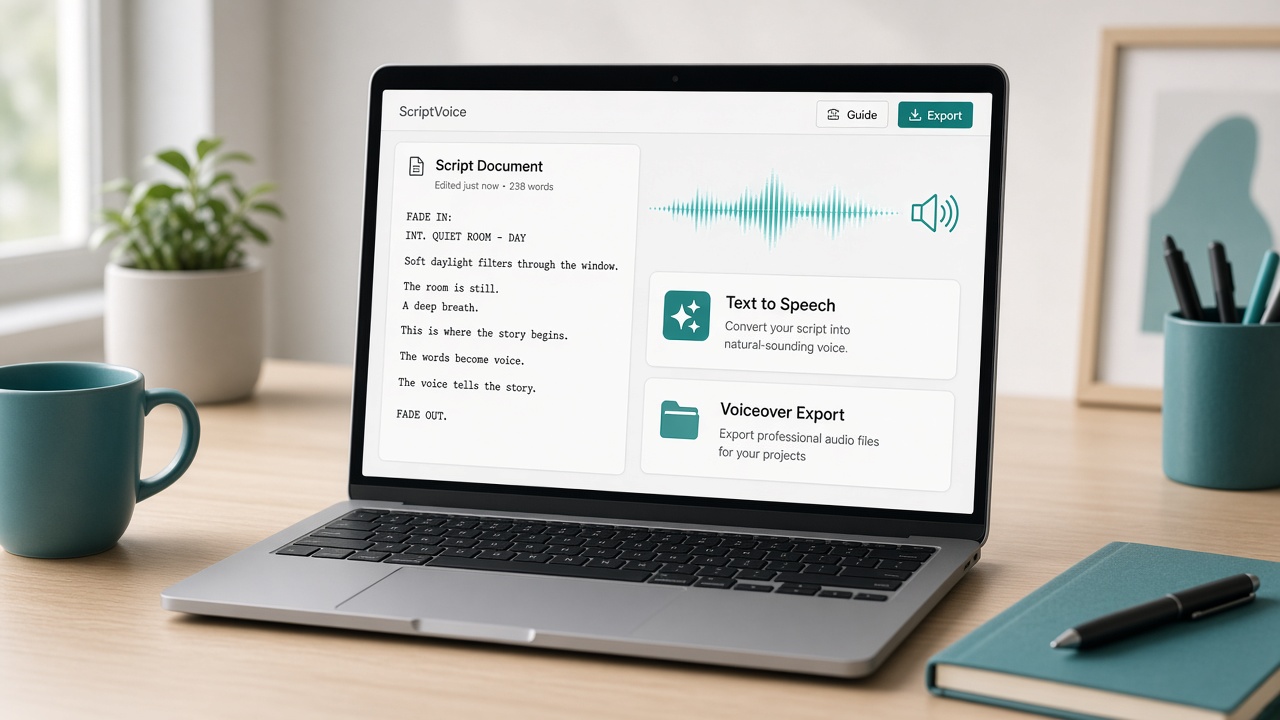
Prepare a script that sounds human
AI text to speech follows what you write. If your script looks like a wall of text, the voice will feel rushed. Write like you talk.
- Use short sentences.
- Add commas and periods where you would pause.
- Spell names the way they should be spoken.
- Avoid stacking too many numbers in one line.
A good script is the biggest upgrade you can give any AI voice generator.
Generate speech step by step
- Open AI text to speech in VoiceStockAI.
- Paste a short test paragraph, not the full script.
- Pick a voice that fits your content.
- Generate the test and listen carefully.
- Adjust pacing or wording if needed.
- Paste the full script and create the final voiceover.
Tip: If one sentence sounds wrong, rewrite that sentence. Do not rebuild the whole project for one awkward line.
When to use multilingual text to speech
Multilingual text to speech is useful when your audience speaks more than one language, or when you need a second version of the same video. Keep the script natural in each language. Direct word-for-word translations often sound stiff.
Test a short intro first. Confirm names, brand words, and product terms before you generate the full file.
Export formats and quality checks
Use MP3 for social media and quick sharing. Use WAV when you want a higher-quality master for editing. After export, listen once on earbuds and once on phone speakers.
Check three things: words are clear, pacing feels natural, and the ending does not cut off too fast.
Improve a weak voiceover without starting over
If the voice feels flat, shorten long sentences. If it feels too fast, slow the delivery or split the paragraph. If the recording around it is noisy, clean the surrounding audio with an AI audio cleaner or online voice enhancer after you place the voiceover in your edit.
Small changes usually fix more than big regenerations.
Best uses for AI text to speech
AI text to speech works well for explainer intros, product demos, course lessons, ad voiceovers, and social clips where you need a steady voice on a deadline. It is also useful when you want the same tone across many videos without recording every take yourself.
It is less ideal when you need a highly emotional performance or a very specific celebrity-like style. In those cases, record a human take or keep the AI voice for supporting lines only.
For weekly content, keep a short library of proven scripts. Reuse the structure, swap the details, and generate new files with the same AI voice generator so your channel sounds consistent.
A simple quality checklist before you publish
- The first five seconds sound clear and confident
- No words are clipped at the start or end
- Names and product terms are correct
- Volume feels similar to your other videos
- The voice still sounds natural on phone speakers
If any item fails, fix that part first. A short AI text to speech re-export is faster than fixing problems after the video is already published.
Frequently asked questions
What is the easiest way to create an AI voiceover?
Write a short script, generate a test with AI text to speech, preview it, then create the full voiceover after the test sounds right.
Can one AI voice generator support more than one language?
Yes. Multilingual text to speech can help you create versions for different audiences. Always test names and product terms first.
Why does my AI voiceover sound unnatural?
Usually the script is too long or missing punctuation. Rewrite in shorter sentences and generate a new test clip.
Should I use AI text to speech for every video?
Use it when speed and consistency matter. For highly personal stories, a real recorded voice may still feel better to your audience.
More guides: AI voice tools guideAI audio tools overviewAI text to speech page